2025-09-17
Touchscreen technology has become an integral part of modern digital life, powering everything from smartphones and tablets to industrial control panels and interactive kiosks. However, as convenient as touchscreens are, they can sometimes exhibit frustrating issues—one of the most perplexing being the display of incorrect content or the registration of touch input on the wrong area or even the wrong screen. This comprehensive guide explores the root causes behind a touchscreen wrong display issue, explains how to diagnose and resolve such problems, and provides practical advice for prevention and troubleshooting.
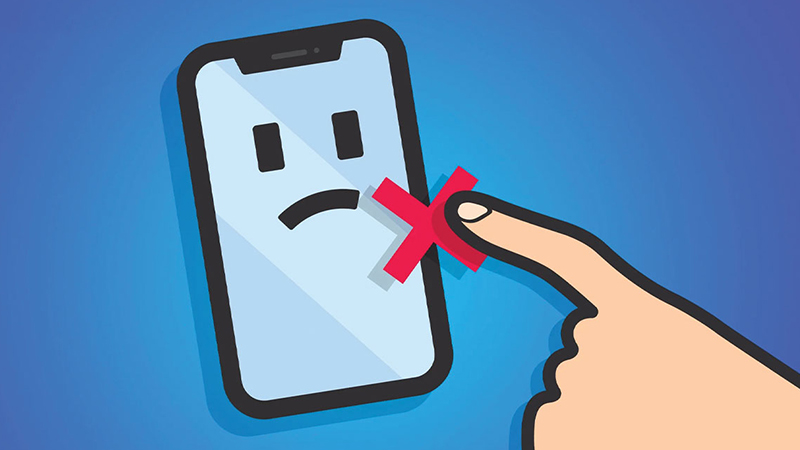
A touchscreen wrong display problem typically refers to situations where the visual content does not align with user input, or where touch actions are registered in the wrong place, on the wrong monitor, or trigger unintended functions. This can manifest as:
– Touch input controlling a different monitor than intended in multi-display setups.
– The cursor or touch response appearing in a location other than where the screen is touched.
– Applications opening or actions occurring without user interaction (phantom touches).
– Display content being distorted, shifted, or otherwise misaligned.
These issues can severely hinder the usability of a device, disrupt workflows, and cause significant frustration.
– Touch input appears on a different monitor than the one being touched.
– Cursor jumps or drifts away from the actual touch point.
– Parts of the screen are unresponsive or register touches inaccurately.
– Ghost touches or phantom inputs occur without any physical contact.
– Display content is misaligned, flickers, or appears on the wrong screen.
Touchscreens rely on precise calibration to map physical touch points to the correct coordinates on the display. If the calibration is off, touches may register in the wrong location or on the wrong screen in multi-monitor setups. This is especially common after software updates, hardware changes, or when connecting additional monitors.
Outdated, corrupted, or incompatible drivers can disrupt the communication between the touchscreen hardware and the operating system, leading to a touchscreen wrong display scenario. Software bugs, operating system updates, or faulty applications can also cause touch input to be misinterpreted.
In multi-monitor environments, if the operating system does not correctly associate the touchscreen input with the intended display, touches may control the wrong monitor. This can happen if the display order is changed, monitors are added or removed, or the primary display is switched.
Cracks, scratches, or internal damage to the touchscreen can lead to inaccurate touch registration or dead zones. Aging components or faulty touch controllers can also cause erratic behavior, including touchscreen wrong display issues.
External factors such as electromagnetic interference, extreme temperatures, moisture, or dirt can disrupt the capacitive or resistive properties of a touchscreen, resulting in misregistered touches or display anomalies.
A malfunctioning touch controller chip can cause touches to be registered incorrectly, leading to drift, ghost touches, or input being mapped to the wrong area of the screen.
Loose cables or connectors between the touchscreen and the main device can result in intermittent or incorrect touch input, as well as display issues like flickering or blank screens.
To effectively resolve a touchscreen wrong display issue, it is crucial to identify the underlying cause. Here’s a step-by-step approach:
– Is the issue limited to touch input, or does it also affect the visual display?
– Does the problem occur on a single display or multiple monitors?
– Are there specific patterns, such as always affecting a certain area or only after certain actions?
– Inspect the screen for cracks, scratches, or visible damage.
– Clean the screen to remove dirt, dust, or moisture that might interfere with touch detection.
– In multi-monitor setups, ensure that the touchscreen is set as the correct display in the operating system’s settings.
– Check display orientation, resolution, and primary/secondary monitor assignments.
– Access the device’s calibration settings and run the calibration utility.
– Follow on-screen prompts to align touch input with display output.
– Open Device Manager (on Windows) or equivalent utility.
– Update or reinstall touchscreen and display drivers.
– Restart the device and test touch functionality.
– Ensure the operating system and all relevant drivers are up to date.
– Install any pending updates and reboot the device.
– If possible, connect the touchscreen to another computer or use a different touchscreen on the same system to isolate the issue.
Proper calibration is essential for accurate touch input. On Windows, this can be done via the Control Panel under Calibrate the screen for pen or touch input. Follow the prompts to identify the correct display and tap the indicated points to align touch input with the display output.
In setups with more than one monitor, use the display settings to ensure the touchscreen is mapped to the correct display. The Setup function in the Tablet PC Settings allows you to specify which monitor should receive touch input. Press Enter to cycle through monitors and tap the screen when prompted to assign touch functionality to the desired display.
Outdated or corrupted drivers can cause touchscreen wrong display issues. Use Device Manager to uninstall and then reinstall the touchscreen driver. After reinstalling, restart the device and test the touchscreen.
If the issue started after a recent software update or installation, try rolling back or uninstalling the problematic software. System restore points can also be used to revert the system to a previous state before the issue began.
If physical damage is detected, such as cracks or a faulty touch controller chip, professional repair or replacement of the affected component may be necessary.
Keep the device clean and dry, and avoid using it in areas with high electromagnetic interference. Regular maintenance can prevent many common touchscreen wrong display problems.
– Regularly calibrate your touchscreen, especially after system updates or hardware changes.
– Keep your device’s software and drivers up to date.
– Handle devices carefully to avoid physical damage.
– Clean the screen regularly and avoid exposure to moisture or extreme temperatures.
– Use surge protectors and avoid placing devices near sources of electromagnetic interference.
If basic troubleshooting does not resolve the touchscreen wrong display problem, consider the following advanced steps:
– Perform a System Reset: As a last resort, reset the device to factory settings after backing up important data.
– Consult Manufacturer Support: If the device is under warranty or the issue persists, contact technical support for specialized assistance.
– Hardware Diagnostics: Some devices offer built-in diagnostics tools to test hardware functionality.
A touchscreen wrong display issue can stem from a variety of causes, including calibration errors, software glitches, incorrect display settings, physical damage, environmental factors, and hardware faults. By systematically diagnosing the problem and applying targeted solutions—such as recalibrating the touchscreen, updating drivers, adjusting display settings, and maintaining the device—you can resolve most issues and restore optimal touchscreen functionality. Regular maintenance and careful handling are key to preventing future problems. When in doubt, consult manufacturer support or a qualified technician for assistance.



 English
 العربية
 Čeština
 Dansk
Dansk Nederlands
 Français
 Deutsch
 Ελληνικά
 Magyar
 Italiano
 日本語
日本語 한국어
한국어 Polski
 Português
 Español
 Türkçe
 Українська
 Tiếng Việt

